In shortHow do you generate an AI image for a post?
Generating an image with AI means describing what you want to see (or starting from a text or a photo) and letting an artificial intelligence model compose the image. For social media, the image also has to come out in the right format and look like your brand, post after post.
In Dropapost you don't have to describe anything: Ava starts from your post's text and your brand identity (palette, typography, logo, character, reference photos). You can also start from your own photo and edit it with a plain-language instruction.
Visuals, in facts
- formats created at the exact size: square 1080×1080, portrait 1080×1350, story 1080×1920, landscape 1920×1080.
- 4
- one-click edits: darker background, brighter, clean white background, background removed, studio lighting…
- 12
- languages for the text on the image, or an image with no text at all.
- 8

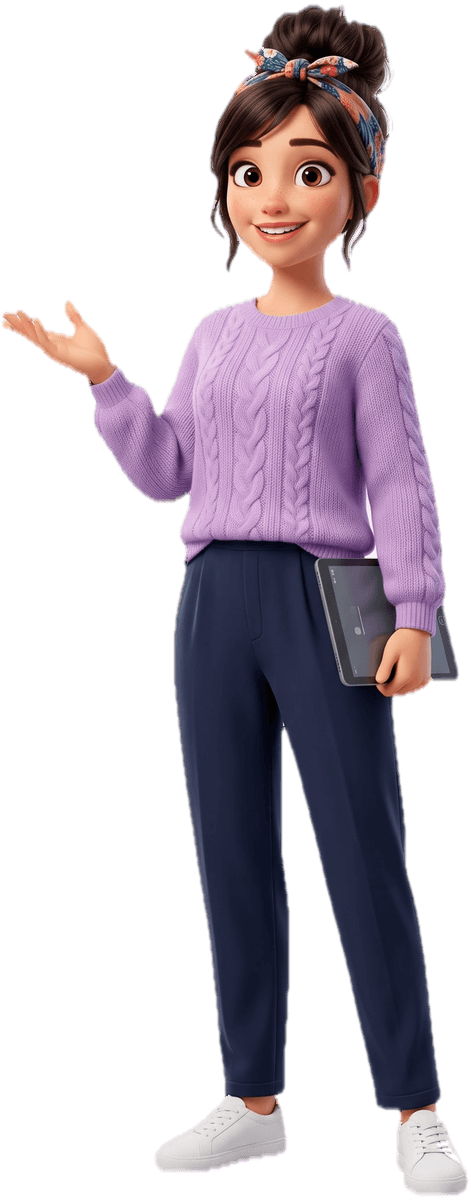
 Created by Ava
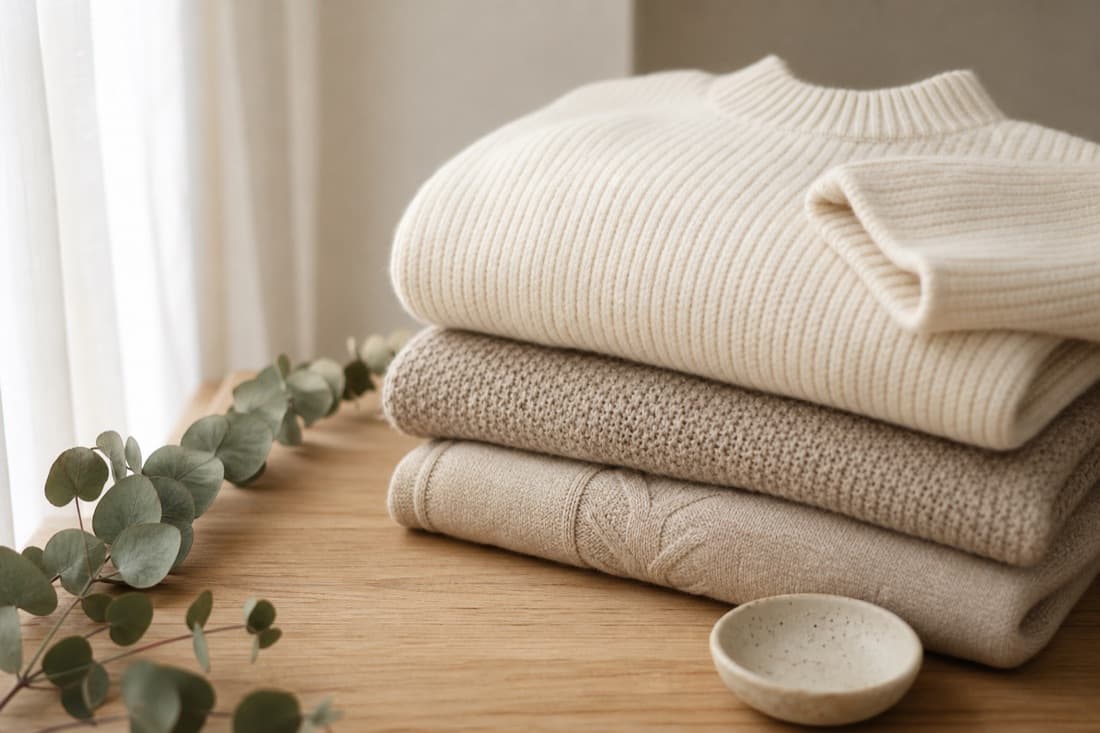 Local wool is back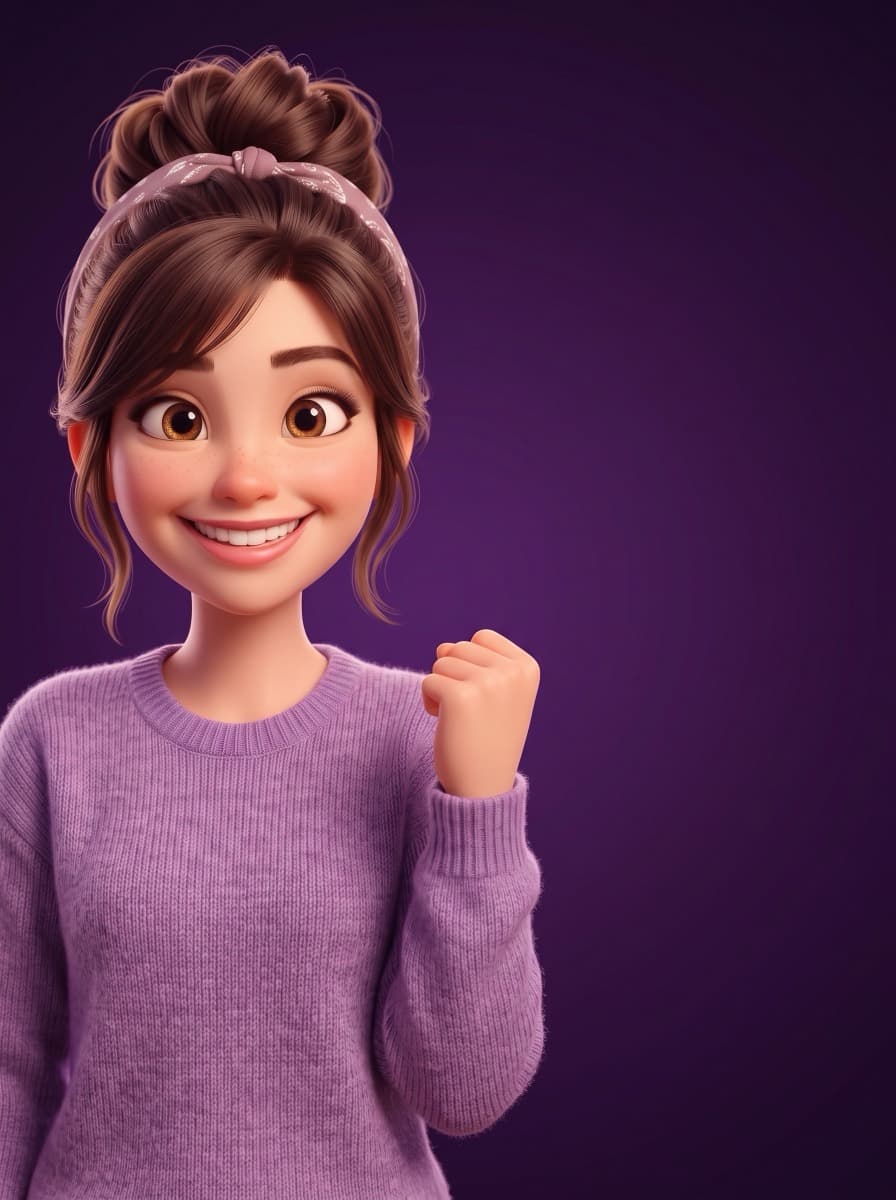
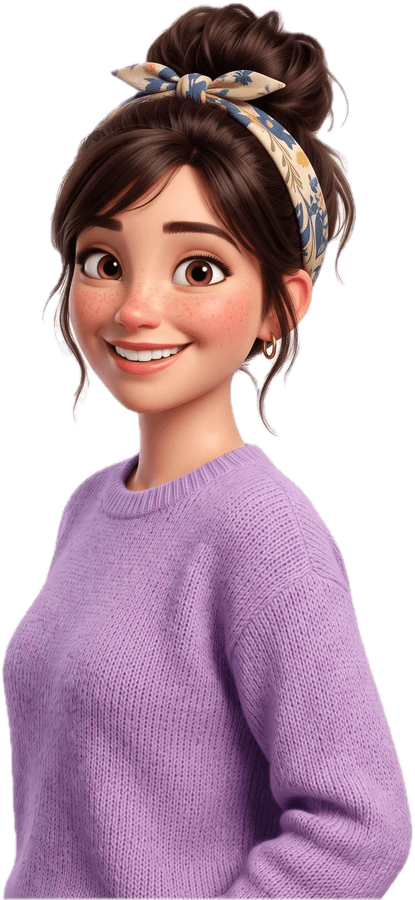
Generate an AI image in four moves.
It all happens on the post page, from the text already written. Nothing to describe unless you want to.
The post guides the image
Leave the description empty: Ava starts from the post's text. Or describe the image you want in one sentence. Tick “Image without text” for a product photo.
You pick the format
Square for the feed, 4:5 portrait to take up more space, 9:16 story for Stories and TikTok, landscape for Facebook. The image is created at the right size, with no cropping.
Ava composes with your brand
Your palette, your website's typography, your logo, your character if you have one: every visual shares the same family look.
You edit in one sentence
“Make the background darker”: Ava edits the image. Previous versions are kept, and you can go back to one in a click.