

Want to schedule Facebook posts without the hassle in 2026? You can do it from a Page or a profile, and even automate distribution so you publish without thinking about it. Here you’ll learn why scheduling boosts visibility, how to schedule a Facebook post step by step, where to find and edit your scheduled posts, which tools to use, and how to make your posts shareable to maximize reach. By the end, you’ll also know how to automate the workflow to maintain a consistent presence without spending your evenings on it.
Key takeaways
- Scheduling Facebook posts saves time and ensures a consistent presence.
- You can schedule directly from Facebook or via a third-party tool that manages multiple networks.
- Making a post shareable increases reach because shares are a strong signal for the algorithm.
- Finding and editing a scheduled post is done in the tool you used to plan it (Facebook or an external dashboard).
- Automating creation and publishing with an AI tool helps you maintain an editorial calendar without spending your evenings on it.
- Why schedule your Facebook post now
- How to schedule a Facebook post step by step
- Where to find and edit your scheduled posts
- Tools to plan and automate: quick comparison
- Make a post shareable and adjust privacy
- Post regularly on Facebook without thinking about it
- Frequently asked questions
Why schedule your Facebook post now
Scheduling your posts frees you from time constraints and ensures a consistent presence without spending your evenings on it. By planning ahead, you publish when your audience is active, maintain a steady cadence, and make your brand easier to remember.
In short
- Checklist: define engagement time slots, prepare visuals and captions, choose “Public” privacy to maximize shareability.
- Planning increases visibility: shares are a strong signal for the algorithm and quickly expand organic reach.
- Think multi-network (schedule TikTok posts and Facebook) for cross-platform consistency and time savings.
- Resource: Automatic posting on Instagram, Facebook, TikTok to automate distribution.
When to prioritize scheduling
- Before a launch or promo: schedule a series of posts to create marketing momentum.
- For editorial series: set an editorial calendar and reserve fixed slots each week.
- If you want to automate your presence (automatic social media posting) and measure results, schedule, then monitor the first 24 hours.
- Need to edit or review a post? Check where to find a scheduled post in the interface or dashboard you used, then edit.
How to schedule a Facebook post step by step
You can schedule a post from a professional Page (recommended for auto-posting) or from your profile if the option is available; the Page offers the most control and access. In a few clear steps, you write, choose the date and time, then schedule it.

Quick steps
On a Page: open Publishing Tools or Creator Studio, create your message (text, image, link), click Scheduled, then choose the date and time. On a profile: write your post, click the calendar icon or the Schedule option, set the date, and confirm. Keep in mind the interface may vary slightly depending on updates.
Tip if the option is missing
- Check the account type: some features are reserved for Pages or creator profiles.
- If the option doesn’t appear, use a third-party tool that offers auto-posting and multi-account management.
- Remember to set privacy to “Public” before scheduling to make the post shareable.
- For a multi-platform strategy, combine scheduling with creating a free Instagram post or the process to schedule Instagram and Facebook posts.
For more video formats and visual tips, see Reel, story or post: which Instagram video format?
Where to find and edit your scheduled posts
You can find your scheduled posts directly in the interface where you planned them: Publishing Tools or Creator Studio on Facebook, or your third-party tool’s dashboard. To edit, open the scheduled post, change the text, visual, or time, then save; if the post is set to direct auto-posting, use a linked professional account to keep access.
Review and edit — checklist
- Open the list of scheduled posts in Publishing Tools or Creator Studio.
- Check visibility and privacy settings before making any changes.
- Edit the text, replace the visual, or adjust the time, then save the final version.
- If the post comes from a third-party tool, open its dashboard to edit or cancel.
- To cancel, delete the scheduled post and archive the idea in your editorial calendar.
What to do if you’ve lost access
- Check that your account is still an admin or editor of the Page and that the professional account is linked.
- Contact the account admin or restore access via Facebook security options.
- If you manage multiple networks and you’re wondering “I can’t schedule an Instagram post,” see this guide: Schedule your Instagram posts: 2026 guide and methods.
Tools to plan and automate: quick comparison
Selection criteria
Yes, the right tools let you schedule posts across multiple platforms from a single dashboard and analyze engagement to improve your strategy. Choose based on direct auto-posting, built-in content generation, multi-account/multi-brand support, e-commerce integrations, and EU/GDPR-compliant hosting.
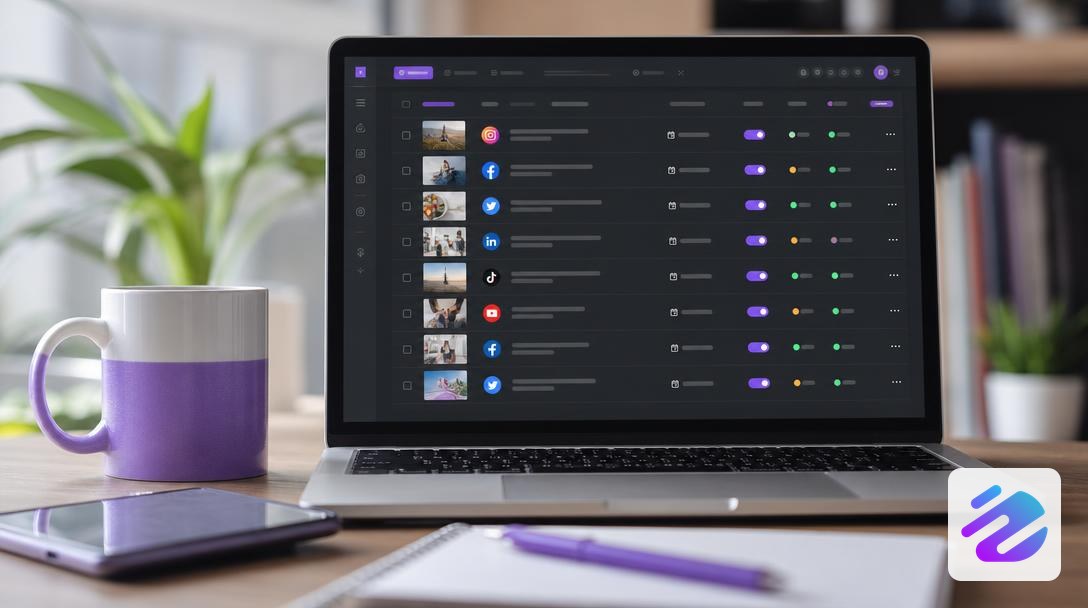
If you’re wondering “why can’t I schedule a post on Facebook,” first check your account type and whether direct auto-posting is available. To boost reach, apply a few engagement tips: audience peak times, optimized visuals, a clear call to action. To go further on Instagram automation, see this guide: Post automatically on Instagram without thinking about it.
Comparison table
Quick comparison of options and key features.
| Option | Indicative price | Key features |
|---|---|---|
| Multi-network dashboard | — | Manage 3 networks (Instagram, Facebook, Twitter) from one place |
| Auto-posting / scheduled publishing | €19.99/month | Direct auto-posting without reminders, time-based scheduling |
| Content generation | 7 days (trial) | Generates copy, visuals, and hashtags; useful for an editorial calendar |
Make a post shareable and adjust privacy
Yes: a shareable post builds trust because it acts like a recommendation and attracts new audiences—so prioritize visibility when scheduling.
Settings to check
Before scheduling a post, check the post’s privacy setting: Public, Friends, or Private. Choose Public to maximize shareability and organic reach, especially if this content is part of your editorial plan. Also check for mentions or links that may limit sharing, and test the mobile preview. If you need to change a setting on a post that’s already planned, use the option to edit a scheduled Facebook post from the interface where you created it.
Make it shareable after publishing — checklist
- Open the published post and change privacy to Public if it isn’t already set.
- Add a pinned comment explicitly inviting people to share and explaining the value of the post.
- Post a story to signal the content is shareable and encourage shares with a clear call to action.
- Monitor the first 24 hours of engagement to adjust your editorial plan messaging if needed.
Post regularly on Facebook without thinking about it
Recommended workflow
Yes: you can automate publishing and creation to keep a steady cadence without thinking about it, thanks to a scheduled post that goes live when you planned it. Start by defining your tone and formats (post, carousel, schedule a Facebook story) then automate text, visuals, and hashtag generation.
- Checklist: define persona, frequency, and goals before generating content.
- Templates: create 3 templates (promo, info, engagement) to speed up creation.
- Auto-posting: enable it on professional accounts to publish directly without reminders.
- Monitoring: check the first 24 hours to adjust the voice if needed.
- Archiving: keep recurring ideas in your editorial calendar for reuse.
Get started in 3 steps
- Create your calendar: decide time slots and schedule themes for the month’s scheduled posts.
- Enable the AI tool: generate copy, visuals, and hashtags, then launch auto-posting linked to your professional account.
- Monitor and refine: review the first 24 hours of engagement and fine-tune the voice if needed.
Dropapost includes AI generation, automatic posting, and multi-brand management; plans start at €19.99/month with a 7-day free trial. Dropapost tip: enable auto-posting to save time, then monitor the first 24 hours to adjust the voice. “Thanks to Dropapost, I publish 3x more without spending my evenings on it.” — A Shopify store. More than 1,000 businesses already trust us.
Frequently asked questions
How do you schedule a Facebook post from a Page or a profile?
You can schedule a post from Facebook by choosing a date and time when creating the post. In practice, there are two options: publish directly from the Facebook interface or use a third-party tool that manages multiple networks and lets you analyze performance from a single dashboard.
How do you edit a scheduled post on Facebook?
You edit a scheduled post from the tool where you planned it. If you used Facebook, open the library or the scheduled posts section to edit; if you used an external dashboard, you’ll need to find and edit the post there. For example, Dropapost centralizes creation, planning, and publishing to save time on your editorial calendar.
Can you schedule a Facebook story?
Scheduling mainly applies to standard posts; stories are generally managed manually or via a third-party tool that supports this format. Scheduling tools often let you manage multiple platforms from a single dashboard, but always check whether the service you choose supports story auto-posting for your account.
Written by
Jhon B.
Dropapost
Tags
Ready to automate your social media?
Join Dropapost and easily manage all your brands from a single platform.
Start for free