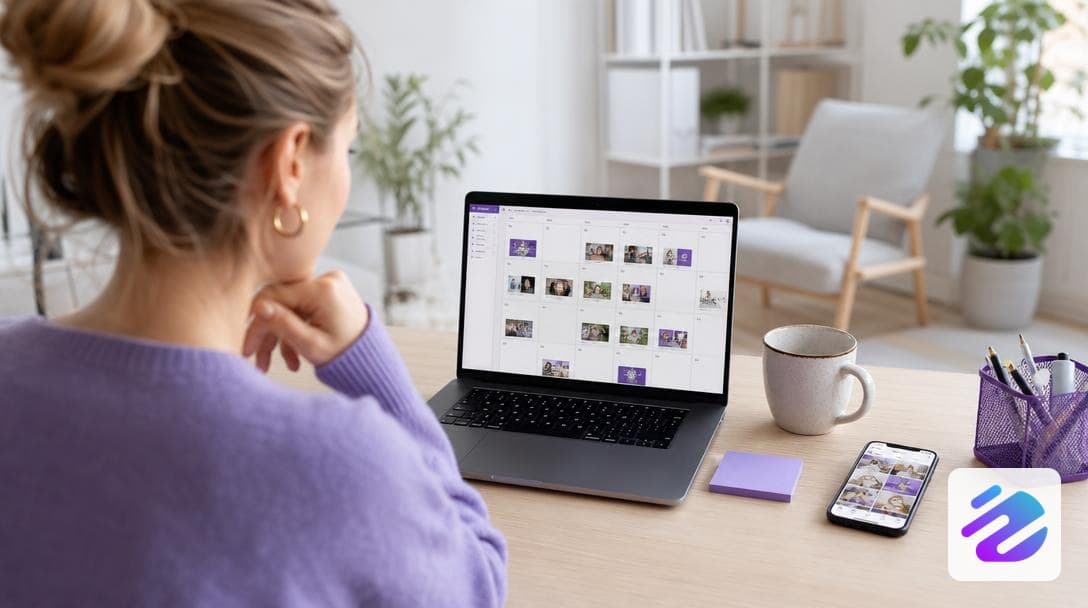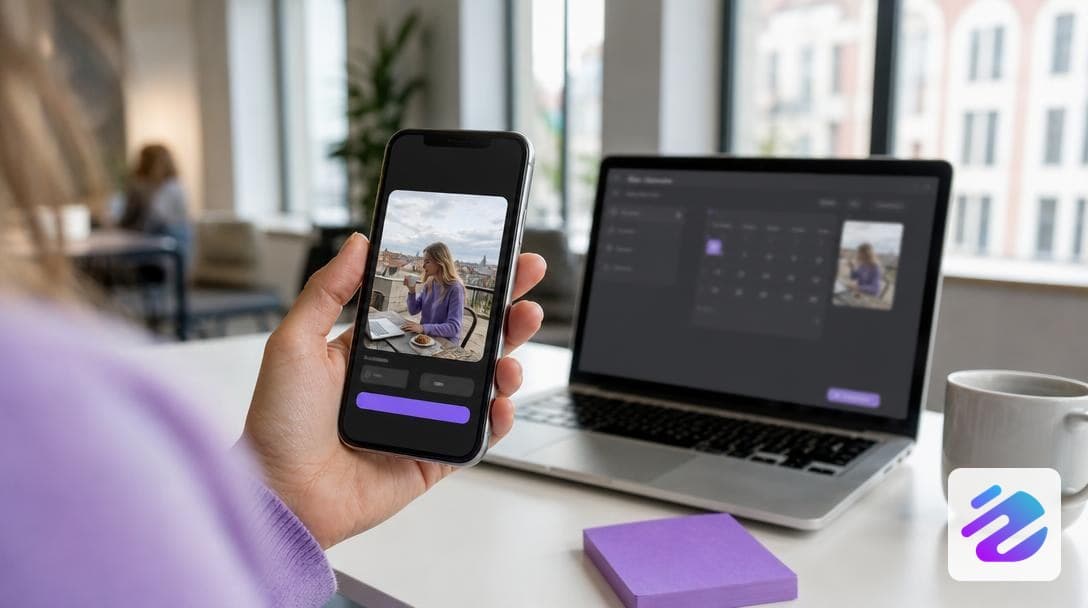
You're filming your Reel on Sunday evening and would like it to go live on Tuesday without thinking about it? You can schedule your Instagram Reels directly from the mobile app, up to 75 days in advance, as long as your account is professional. In practice, you choose the date and time when sharing the video, and Instagram publishes it on its own.
This guide explains step by step how to do it, which type of account to use and which vertical format to respect so your Reel displays properly. You'll also see when it's better to publish manually, and what changes for Stories.
The essentials
- You can schedule an Instagram Reel from the mobile app, up to 75 days in advance, via "Schedule post".
- Scheduling is only possible with a professional account, either Business or Creator.
- A Reel is published in vertical 9:16, at 1080 x 1920 px, in MP4 or MOV format.
- If the music or a native feature blocks scheduling, you need to publish the Reel manually.
- Stories cannot be scheduled within the app: they go through a third-party tool.
- Can you schedule an Instagram Reel without a third-party app?
- Which Instagram account do you need to schedule?
- Which format for a Reel: vertical 9:16 and 1080 x 1920 px
- How to schedule your Reel from your phone, step by step
- When should you publish your Reel manually?
- And do Instagram Stories get scheduled too?
- How to fill your Reels calendar on autopilot
- Frequently asked questions
Can you schedule an Instagram Reel without a third-party app?
Yes, in most cases you can schedule your Instagram Reels without a third-party app. Instagram also handles feed posts and carousels, and the logic stays the same: you choose a date and time, then the mobile app publishes on your behalf.
An analysis by Blog du Modérateur confirms that scheduling applies, in most cases, to Reels too. This doesn't hold for every account: the exceptions mostly concern music. Some sounds can block scheduling while the rest of the process works, so check the sound before planning. If the option refuses scheduling, plan to publish manually at the desired time.
If you work from a computer, prepare your planning in advance to schedule Instagram posts. To choose the format beforehand, read our comparison of video formats.
Which Instagram account do you need to schedule?
Scheduling an Instagram post is only possible with a professional account, either Business or Creator. A personal account does not show this option. Your Instagram reel is then published manually.
To switch to a professional profile, open your profile settings. Then look for the account type. Your followers and posts remain in place on your feed, so you don't start from scratch.
Business suits a brand or a shop, Creator suits a creator or freelance profile. In both cases, you manage your posts from your phone or a computer.
In practice, you can schedule your Instagram Reels and carousels once the right status is in place, by exporting in portrait, as detailed in this guide to video formats. An Instagram story follows a different logic. Also read our method for planning your posts.
Which format for a Reel: vertical 9:16 and 1080 x 1920 px
For a Reel, the first setting to check is the vertical format. Before scheduling an Instagram post, check your video, because a badly calibrated file can block the rest of the process.
For your Instagram reel, film or export directly in portrait rather than cropping afterwards. The 2025 Blog du Modérateur guide on video formats details these settings for social networks. Here are the three settings to check before scheduling your Instagram Reels.
| Setting | Expected value | Why check it |
|---|---|---|
| Aspect ratio (screen proportions) | 9:16 (vertical) | Avoids forced cropping |
| Resolution | 1080 x 1920 px | Keeps the image sharp on screen |
| File format | MP4 or MOV | The file must be readable on import |
To read this table, compare each row with your exported file. If a single setting differs, re-export before launching your editorial calendar. A carousel or an Instagram story has its own settings.
How to schedule your Reel from your phone, step by step
You can schedule your Instagram reel from the mobile app, in five steps.
Here is the procedure, in this order:
- Create your video in vertical format, then add your caption and hashtags.
- When publishing, tap "Schedule post" and not the immediate publish button.
- Choose the date and time, respecting the advance limit set by Blog du Modérateur.
- Check that the Reel appears in the list of scheduled content.
- Review the Reel the day before, especially the sound and the caption.
So a sound removed at the last minute can't always be fixed. Note each date in your editorial calendar, and keep a manual publication for the day the option blocks. On your account, also note your Instagram stories in this same calendar. To schedule an Instagram post without errors, our quick scheduling guide helps you.
When should you publish your Reel manually?
When scheduling is blocked, notably for music or a native feature, you must publish your Reel manually at the desired time. This limit depends on the account type and on what you add to the video.
You can schedule your Reels and a regular Instagram post without trouble, except when the option blocks. Imagine a popular sound you want to release on a Tuesday morning: you open the app that day and publish it yourself.
The real trap is forgetting: your editorial calendar must show each manual publication, with date and time, so you don't miss it on the day.
This habit also applies to an Instagram story to publish at a fixed time. Publishing manually isn't enough on its own, because your organic reach also depends on the content.
And do Instagram Stories get scheduled too?
No, a story cannot be scheduled natively. Neither the Instagram mobile app nor Meta Business Suite allows it, so you need to go through a third-party tool. You can, however, schedule a feed post directly within the app.
An app to schedule Instagram exists, but not all of them handle Stories the same way. Some tools go through the Instagram API, the interface that connects software to the platform, and their methods vary from one tool to another.
This API imposes technical restrictions, which makes scheduling Stories more constraining than scheduling feed posts. With a professional or creator account, scheduling an Instagram Reel takes a few taps, by choosing the publication date, whereas a story requires more settings.
If you mostly publish Stories, plan more time than for scheduling your Instagram Reels. Add them to your editorial calendar and review them before their time, since your organic reach depends on this consistency.
How to fill your Reels calendar on autopilot
Scheduling an Instagram reel sets the publication date, but not the creation. Creation is what takes the most time each week.
Dropapost, an AI community manager, turns an idea or a photo into a short video, then fills your calendar and publishes at the best times. AI moves fast on texts, but it can misjudge a joke or a local context, so nothing goes out without your validation.
For the queue to run, switch to a professional account, or a creator account if you are freelance. If a music track blocks scheduling, publish that Reel manually, then follow its organic reach in your feed. From your phone, review the publication date the day before.
To go further, read our guide to publishing automatically. You can start your free 7-day trial on Dropapost, without paying anything today.
Frequently asked questions
How do you schedule an Instagram post on your phone?
You can schedule an Instagram post from the mobile app, provided you have a professional account of type Business or Creator. Just tap "Schedule post" and choose the date and time. If you prefer to delegate creating visuals and captions, Dropapost can handle it.
How do you create an Instagram reel?
To create a Reel on Instagram, you film or import a vertical video, meaning held in portrait mode, saved in MP4 or MOV format. Then you add your text and music from the app, and check that the chosen sound is available. A protected track can block scheduling, so test it before planning. In other words, anticipate this point to avoid a last-minute manual publication.
Written by Mathieu, Dropapost
Written by
Jhon B.
Dropapost
Tags
Ready to automate your social media?
Join Dropapost and easily manage all your brands from a single platform.
Start for free